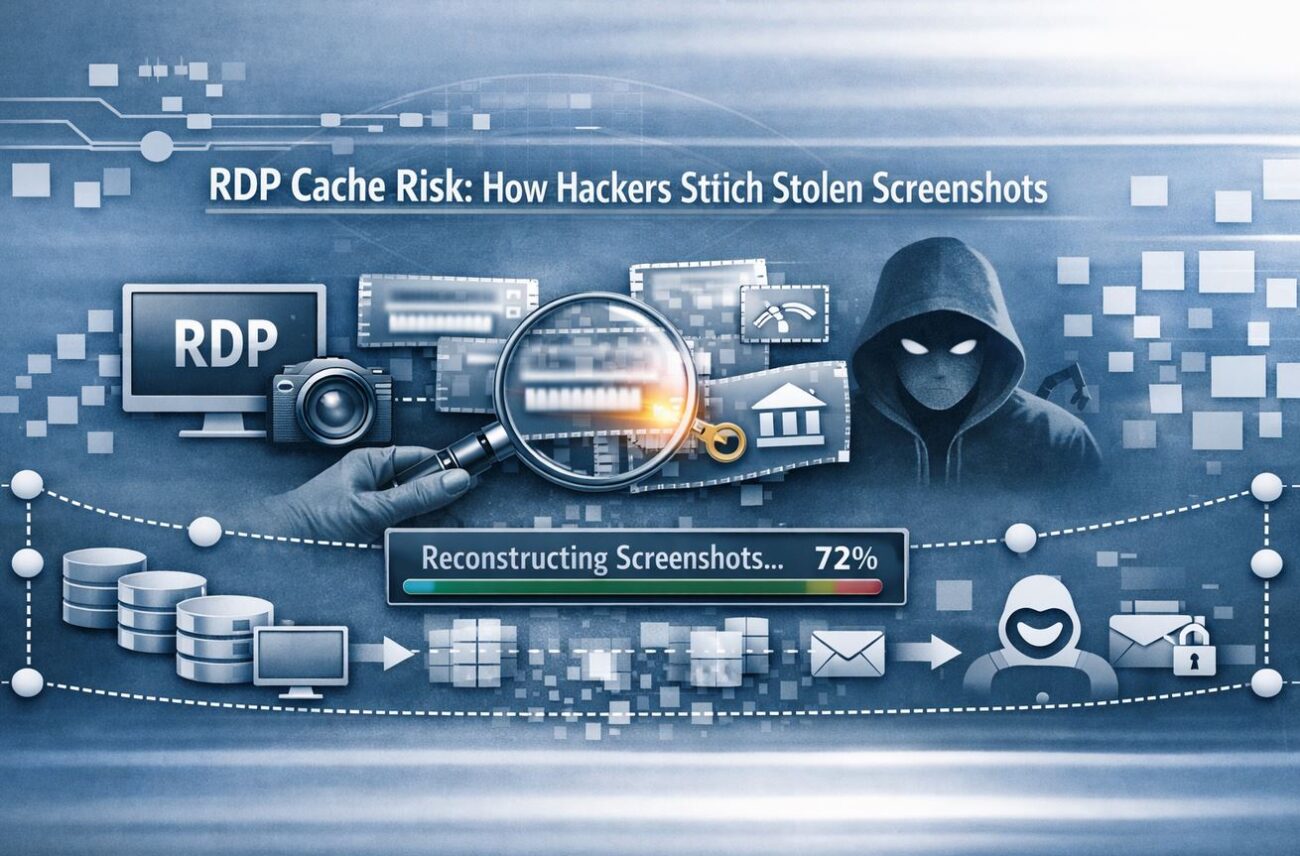
Windows Remote Desktop Protocol (RDP) is the backbone of remote work for millions of IT professionals. But beneath its convenience lies a quiet, persistent security risk. Whenever you initiate an RDP session, Windows captures and stores visual fragments of your screen on your local hard drive.
As recently highlighted by SCYTHE Labs, these “breadcrumbs” can be extracted and reassembled into readable screenshots. This isn’t a complex hack; it requires no special privileges, takes only minutes, and uses free, open-source tools. For an attacker already inside a network, the RDP Bitmap Cache is a goldmine for reconnaissance.
The Technical Core: What is the RDP Bitmap Cache?
To improve performance and reduce lag, Windows uses a feature called Bitmap Caching. Instead of re-sending every pixel over the network each time a window moves, the OS saves small image tiles (bitmaps) of the remote session to your local disk.
The Problem with Persistence
Unlike temporary memory, this cache is written to the hard drive and remains there long after the session is closed. These tiles capture everything that was on your screen:
- Confidential emails and internal documents.
- Proprietary source code or server configurations.
- Usernames and passwords typed into visible fields.
Because these files are stored in the user’s local application data directory (%LocalAppData%\Microsoft\Terminal Server Client\Cache), an attacker does not need administrator rights to steal them.
How Attackers Stitch the Image Together
According to threat research, RDP-related issues account for nearly one-third of all global enterprise security flaws. Threat groups like BianLian, Medusa, and Scattered Spider leverage this cache using a simple three-step process:
- Exfiltration: Attackers use a basic PowerShell command to zip the cache folder and upload it via HTTPS. This blends in with normal web traffic, making it nearly invisible to basic firewalls.
- Parsing: Using a tool like
bmc-tools, the raw cache files are broken down into thousands of individual image tiles. - Stitching: Finally, a tool like
RdpCacheStitcheracts like a jigsaw puzzle solver, automatically arranging the tiles to reconstruct the original remote desktop screen.
Even a partial reconstruction can provide enough information—such as a visible server name or an open browser tab—to fuel the next phase of a high-stakes intrusion.
Indicators of Compromise (IoC): The Ghost in the Cache
Interestingly, the absence of a cache can be just as telling as its presence. Sophisticated attackers often delete the cache directory before logging out to hide their tracks.
Pro-Tip for Incident Responders: If you find a workstation with a long history of RDP usage but a completely empty bitmap cache, treat it as a critical red flag. This “absence of evidence” is a strong signal that a threat actor has manually scrubbed the machine.
Defensive Strategy: Hardening Your Endpoints
You can eliminate this risk by adjusting your default Windows configurations and improving your monitoring visibility.
1. Disable Caching via Group Policy
The most effective defense is to turn the feature off entirely. You can apply a Group Policy Object (GPO) to ensure no image fragments are ever written to the disk.
- Path:
Computer Configuration > Administrative Templates > Windows Components > Remote Desktop Services > Remote Desktop Connection Client - Setting: Set “Turn off persistent bitmap caching” to Enabled.
2. Monitor for Unauthorized Access
Ensure your Endpoint Detection and Response (EDR) systems are configured to flag:
- Access to the
%LocalAppData%\Microsoft\Terminal Server Client\Cachefolder by unusual processes. - PowerShell commands involving the
Compress-Archiveutility targeting app data directories.
3. Network Egress Filtering
Verify that your security tools generate alerts for HTTPS transfers of compressed archives originating from temporary or local app data directories.
FAQs
1. Does this affect Mac or Linux RDP clients?
Most third-party clients (like Remmina or Microsoft Remote Desktop for Mac) handle caching differently, often storing it in memory. This specific “Persistent Bitmap Cache” risk is primarily a Windows-to-Windows issue.
2. Is there a performance hit if I disable caching?
On modern high-speed networks, the difference is negligible. You may notice a slight increase in data usage, but for enterprise security, the tradeoff is well worth it.
3. Can I just manually delete the cache?
Yes, but it will start rebuilding the moment you open a new RDP session. Group Policy is the only way to ensure a permanent fix.
Conclusion: Closing the Visual Backdoor
The RDP Bitmap Cache is a classic example of a performance feature becoming a security liability. In an era where “living off the land” (using built-in tools for attacks) is the norm, securing these small visual tiles is a vital step in reducing your organization’s attack surface.
Action Item: Check your GPO settings today. Disabling persistent bitmap caching is a “quick win” that denies attackers a free look at your internal environment.
